How every option works
Everything BoardHawk adds to your Relay load board, button by button, in plain English. Pictures show a made-up demo board.
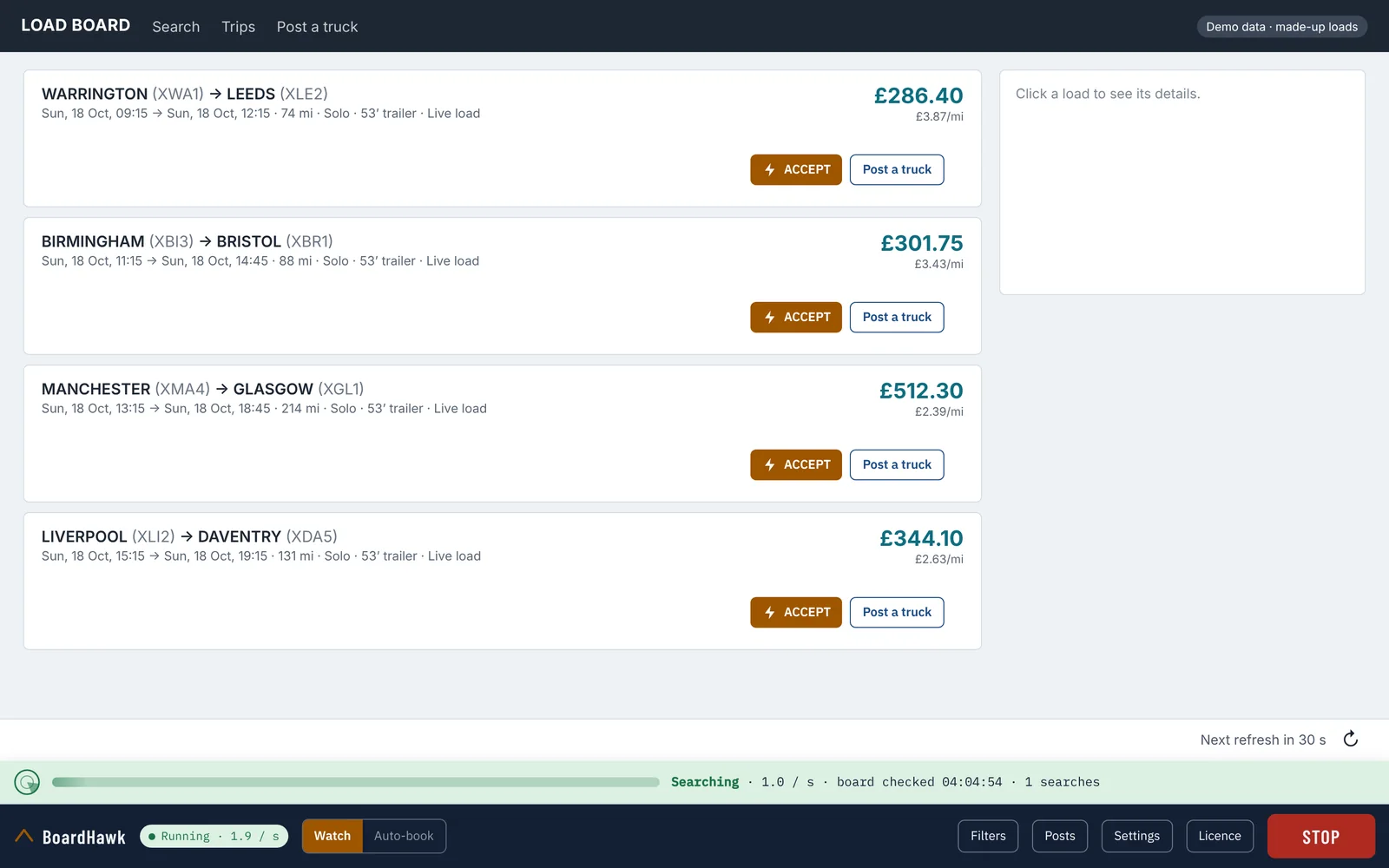
The BoardHawk bar
Once BoardHawk is installed, a dark bar sits along the bottom of the Relay load board. From left to right:
- The status pill says what BoardHawk is doing: Stopped, Running · 1.9 / s, FOUND – stopped, or Licence needed.
- Watch / Auto-book. In Watch, BoardHawk finds loads and you decide. In Auto-book, it books a matching load for you (more on that below). Auto-book only becomes available once Instant Book is on.
- Filters, Posts, Settings, Licence open their panels just above the bar. Press the same button again to close it.
- START / STOP, the big button. You can also stop with Alt+Shift+S.
Just above the bar is the scanner strip. Green means searching normally. Yellow means Relay asked it to slow down, so it's waiting a little longer between checks. Red means it has stopped, with the reason written next to it.
How BoardHawk searches, and how fast
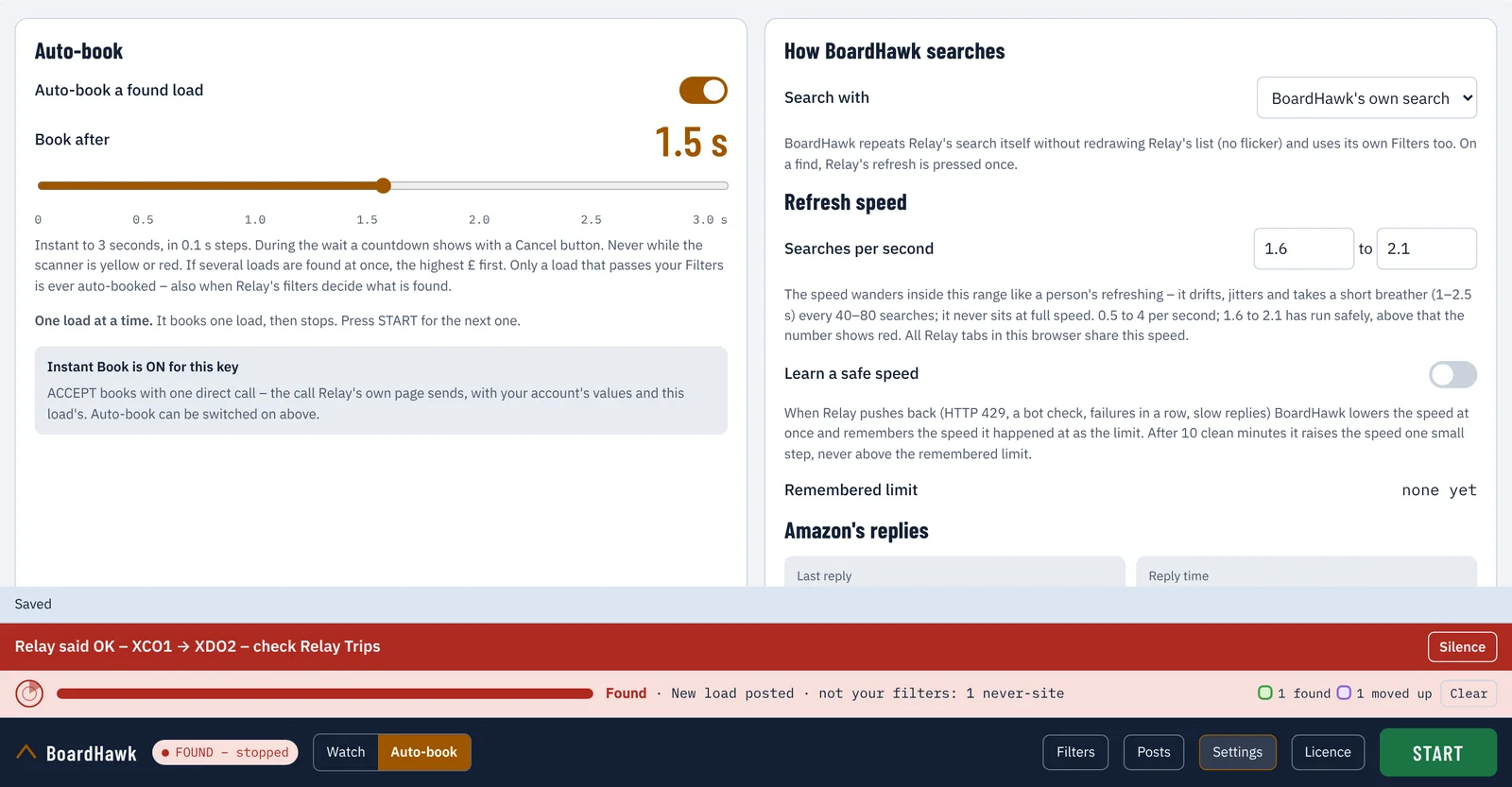
Open Settings and you'll find Search with, which has two choices:
- Relay's refresh button (the default). BoardHawk presses Relay's own refresh for you and reads Relay's answer. Relay's own filters in its search bar decide which loads show, and every new load or price rise counts as found. Relay redraws its list each time, just as it does when you click refresh.
- BoardHawk's own search. BoardHawk repeats Relay's search itself in the background, so the list doesn't flicker, and it also applies BoardHawk's own Filters. When something fits, it presses Relay's refresh once so the load is right there on Relay's list.
Refresh speed
You set a range of searches per second, from 0.5 to 4. BoardHawk wanders inside that range the way a person refreshing would: it drifts, varies a little and takes a short breather of one to two and a half seconds every 40 to 80 searches. It never sits at full speed. 1.6 to 2.1 per second has run comfortably; above 2.1 the number turns red as a warning. If you have the board open in several tabs, they share one speed, so two tabs don't mean twice the searches.
Learn a safe speed
With this switch on, if Relay pushes back – a "too many requests" answer, a bot check, several failures in a row or very slow replies – BoardHawk slows down straight away and remembers the speed it happened at. After ten clean minutes it creeps back up one small step, never above the remembered limit. You can forget the limit with one click.
Safety answers
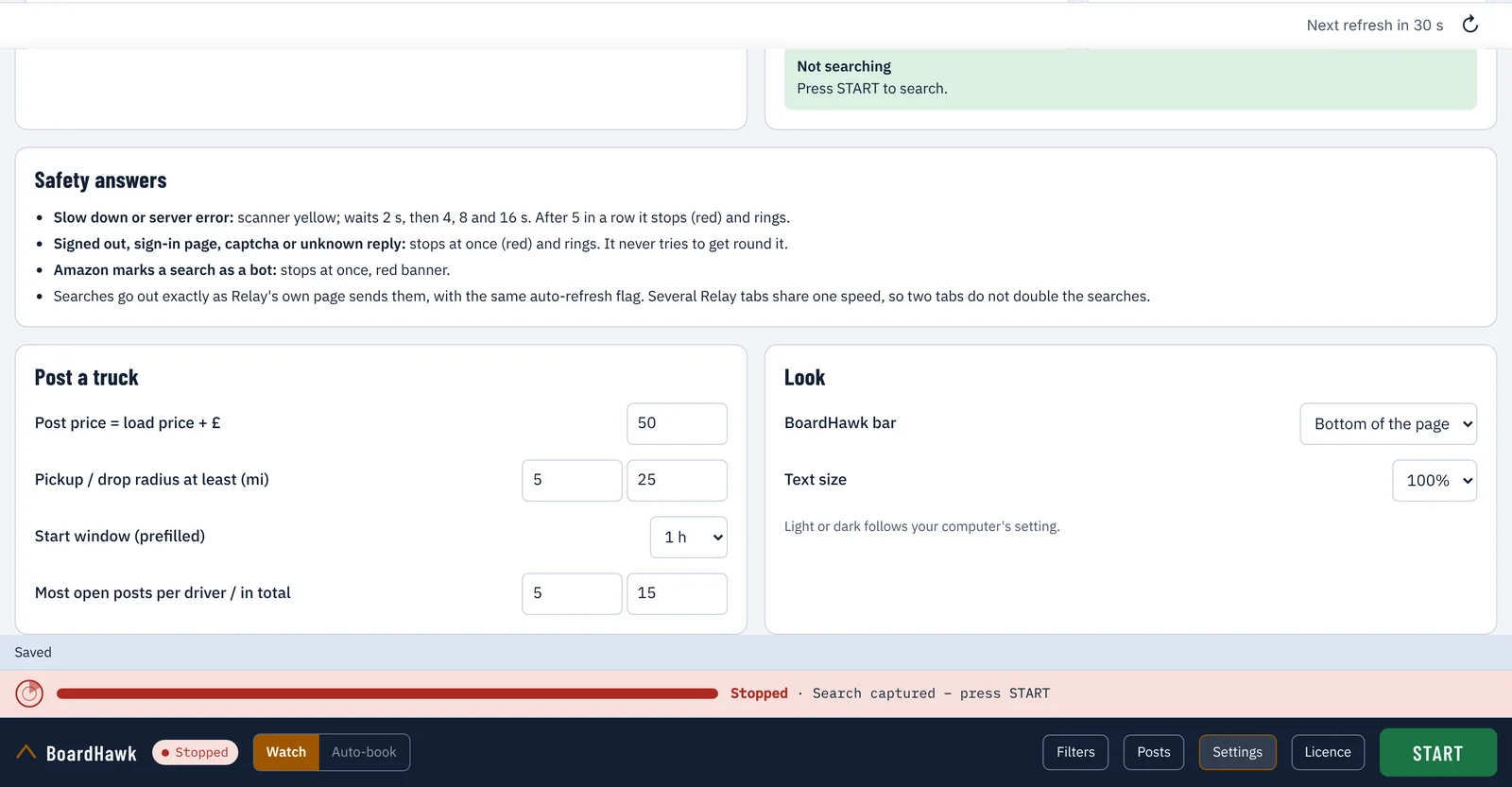
- Slow down or a server error: the strip turns yellow and BoardHawk waits 2, then 4, 8 and 16 seconds. After five in a row it stops (red) and rings.
- Signed out, a sign-in page, a captcha or an answer it doesn't recognise: it stops at once and rings. It never tries to get round them.
- Amazon marks a search as a bot: it stops at once with a red banner.
Filters and sounds
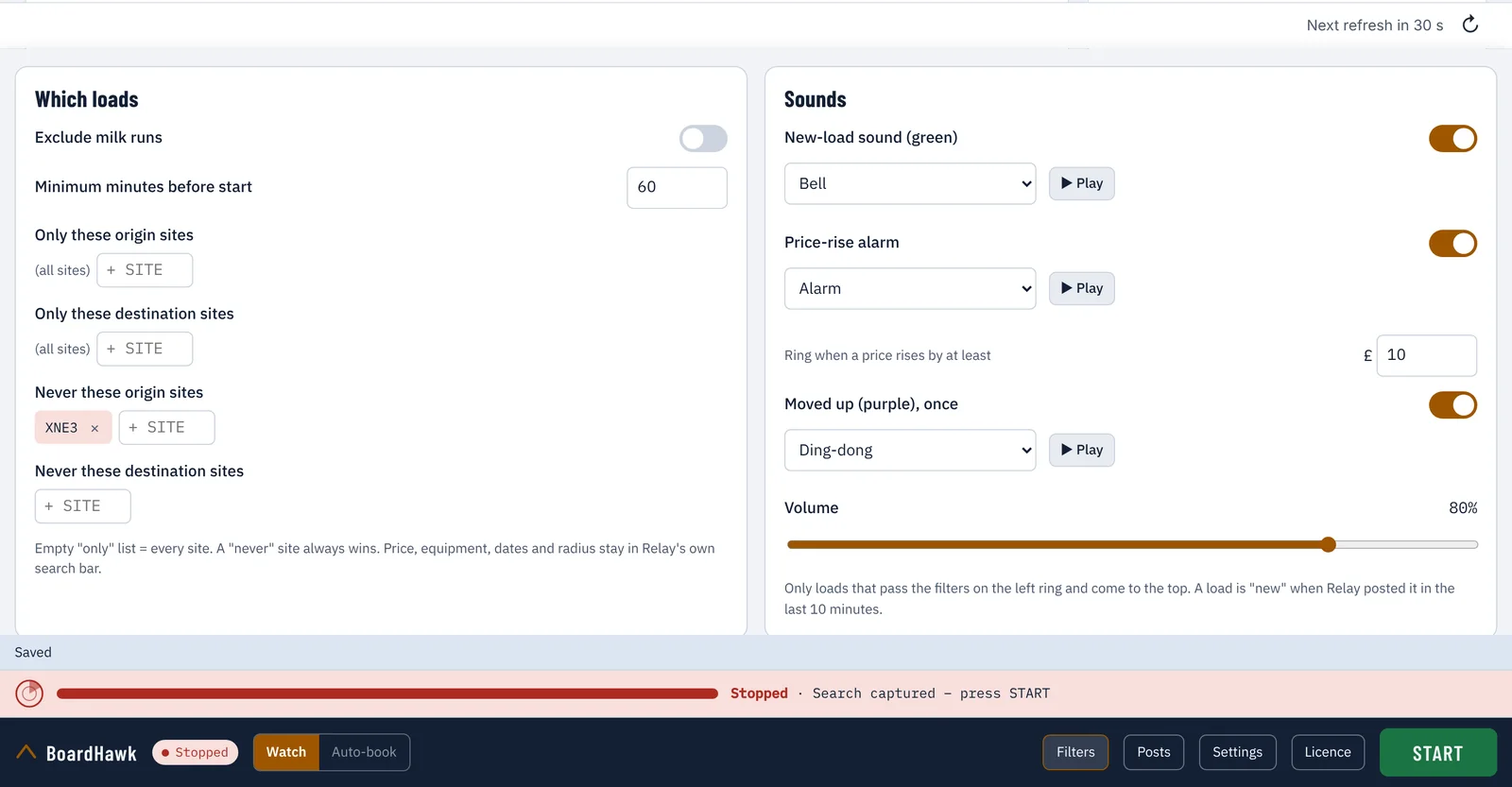
The Filters panel has two halves. On the left, Which loads:
- Exclude milk runs – leave out loads Relay marks as milk runs.
- Minimum minutes before start – ignore loads that start too soon for you to get a truck there.
- Only these origin / destination sites – type a site code and press Enter. An empty list means every site.
- Never these origin / destination sites – a "never" site always wins over an "only" list.
Price, equipment, dates and radius stay in Relay's own search bar. These filters decide what counts as found when you use BoardHawk's own search, and auto-book only ever books a load that passes them – whichever search you use.
On the right, Sounds: a new-load sound for green loads, a price-rise alarm when a load's price goes up by at least the amount you set (£10 to start with), a softer sound for purple loads, and a volume slider. Each has a few sounds to choose from, with a Play button to hear it.
Found loads: green and purple
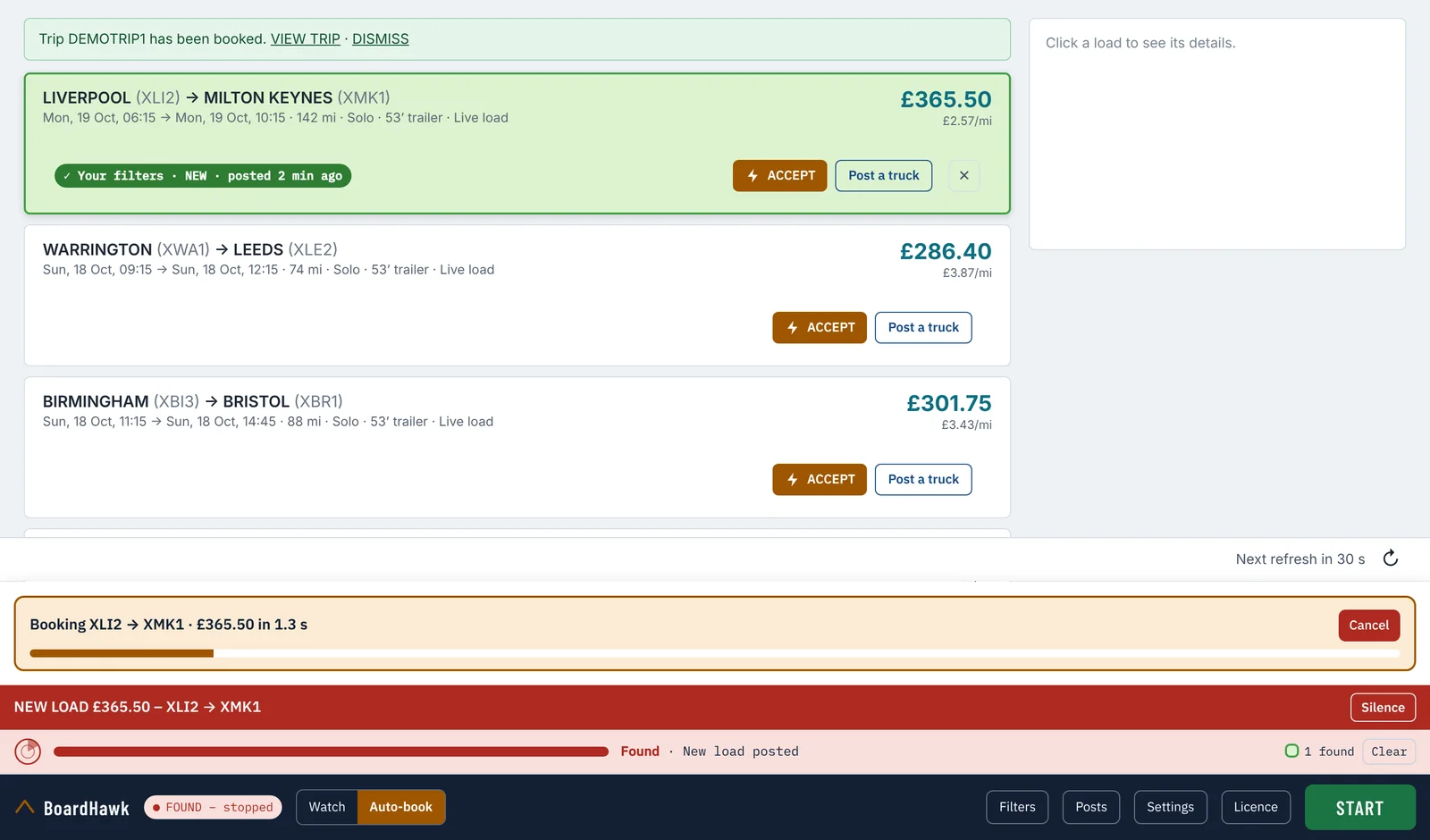
When BoardHawk finds something, it stops searching, rings and moves the load to the top of Relay's list. It doesn't move Relay's cards around in the page itself – it just shows them in a different order – and it doesn't cover them up.
- ✓ Your filters · NEW · posted 2 min ago – a new load that passes your filters.
- Not your filters · NEW · posted 2 min ago – a new load outside your filters, shown once in case it's still worth a look.
A load counts as new when Relay posted it in the last ten minutes. A red banner at the bottom names the load, with a Silence button. The little counters in the strip (1 found · 1 moved up) have a Clear button, and the ✕ on a card takes it off the list of found loads.
Every Relay card also gets a small row with ACCEPT and Post a truck.
ACCEPT, Instant Book and auto-book
Before your first booking
Press ACCEPT on a card and BoardHawk opens that load in Relay and presses Relay's own Book button and its confirm for you, exactly as you would. Before pressing anything it checks that Relay's details really show this load – the same sites and price – and exactly one Book button. If anything looks different, it presses nothing and tells you to book in Relay yourself.
Instant Book switches itself on
When Relay books that load, BoardHawk keeps a copy of the booking request Relay's own page sent, with your account's own details, in your browser only. From then on, ACCEPT books directly in one step (Instant Book), and auto-book can be switched on. BoardHawk never makes a booking request up: it only fills in the next load's own details – its id, version, price and the like – in the request Relay itself made. That's why one real booking is needed: book a load you actually want. Never book a load just to test.
The copy lives in your browser, with the extension. If you install BoardHawk again into a different folder, your browser treats it as a new extension that starts empty – just make one more real booking. Updating into the same folder keeps everything.
Auto-book
- Switch on Auto-book a found load in Settings (or press Auto-book on the bar) once Instant Book is on.
- Book after: from instant to 3 seconds, in tenths of a second. While it waits, a countdown shows with a Cancel button.
- One load at a time. It books one load, then stops. Press START for the next one.
- Only a load that passes your Filters is ever auto-booked. If several appear together, the highest price goes first.
- Never while the scanner strip is yellow or red, and never the same load twice from your browser.
Every booking is a real booking on your Relay account. After a booking, a red banner says BOOKED – check Relay Trips. If Relay's answer isn't clear, BoardHawk says Unknown – check Relay and never sends that load again.
Post a truck, open posts and repeat posts
Post a truck from any card
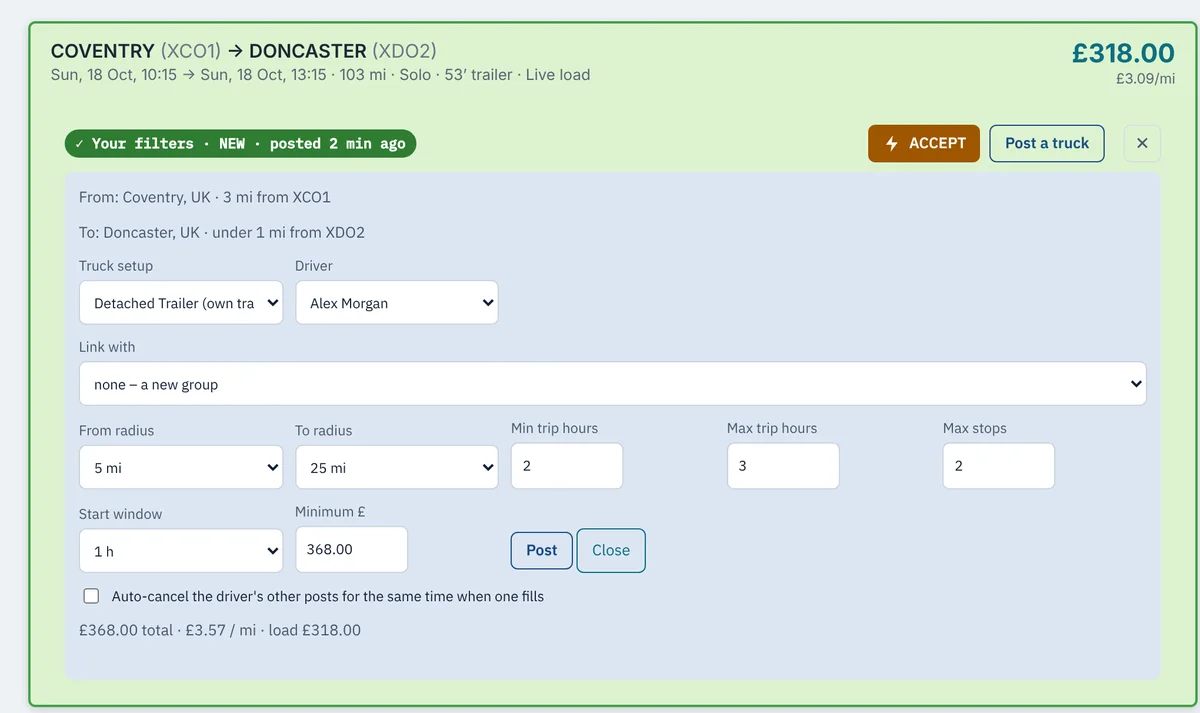
Post a truck on a card opens a form filled in from that load: the nearest towns on Relay's own town list, the truck setup, the driver, link with another post, from and to radius, trip hours, stops, start window and a minimum price. The price starts at the load's price plus the amount you choose in Settings (£50 to begin with), and the line underneath shows the total and the price per mile. Press Post and the post goes to Relay once; if Relay refuses, you're told why.
Open posts
The Posts panel lists your open posts – driver, towns, time window, minimum price and status. Tick some and Cancel selected, or Cancel all open. You're always asked to confirm. Two switches live here too:
- Auto-cancel a driver's other posts for the same time when one fills.
- After a booking: ask who takes it – see below. Off until you switch it on.
Repeat a post on other days
Tick exactly one open post and choose Repeat on other days. Pick the days, the driver and the minimum price, check the list of what will be sent, then press Post. Every detail is copied from the post as Relay saved it; only the date moves. Each post is sent once – a failed one is listed, not retried.
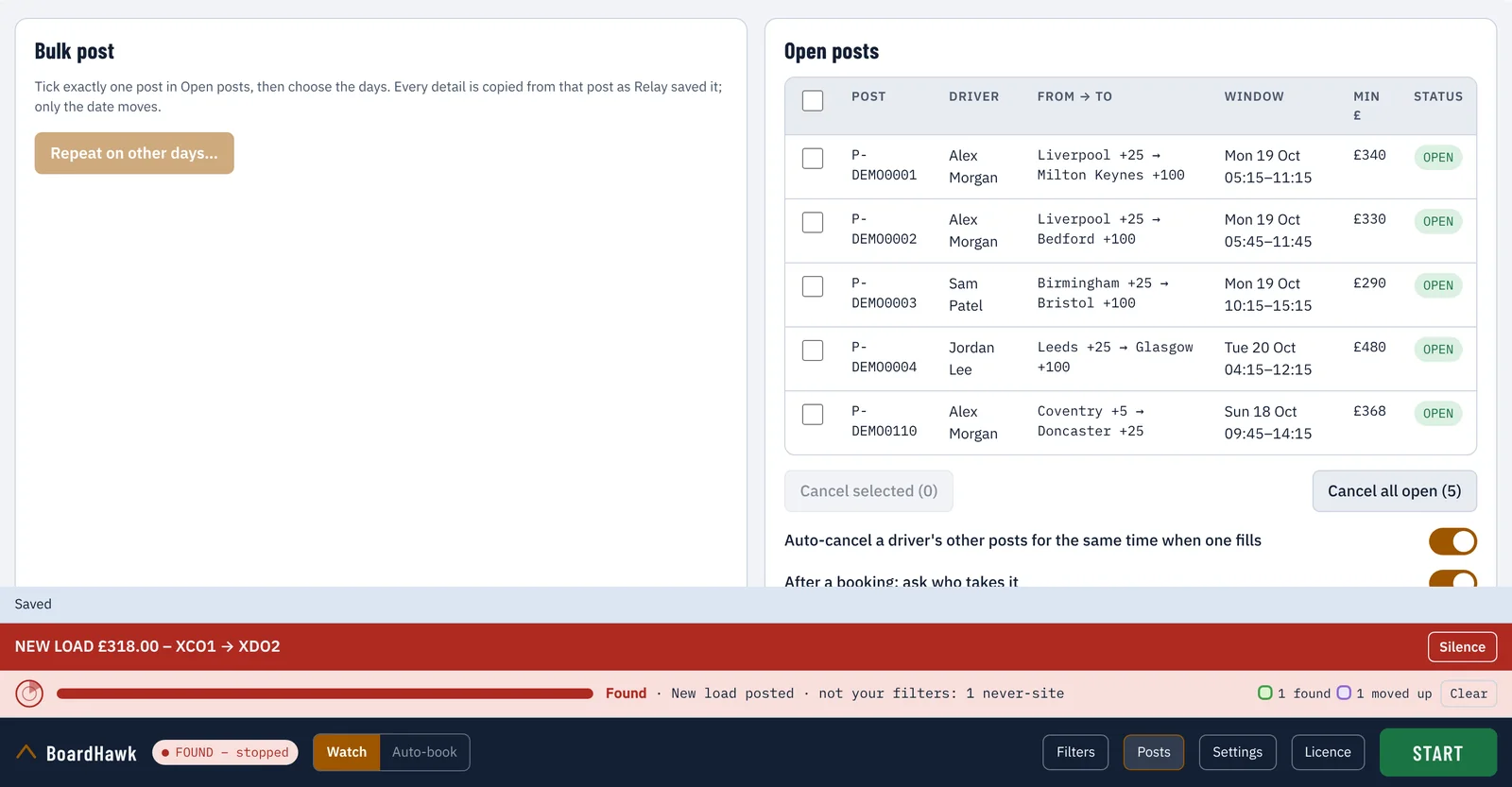
Settings has the defaults for posting: price above the load, minimum pickup and drop radius, the start window, and the most open posts per driver and in total.
After a booking: who takes it?
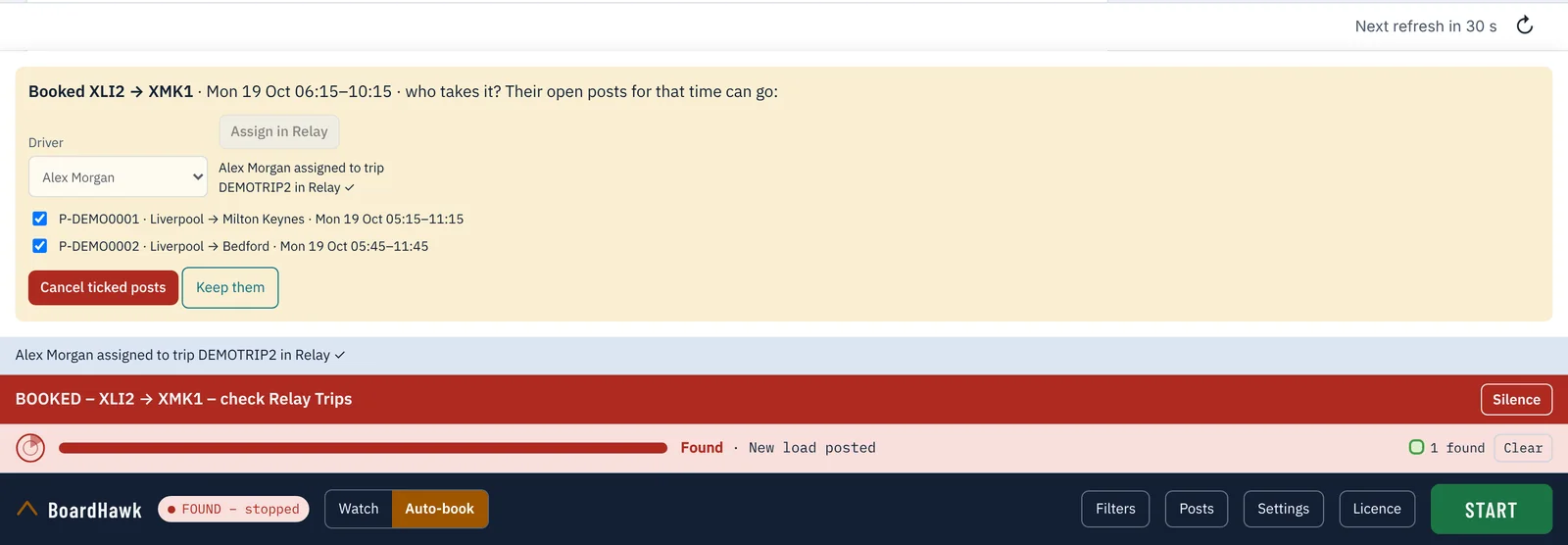
With After a booking: ask who takes it switched on, every booking – by ACCEPT, auto-book or Relay's own Book button – brings up a short question:
- Driver: choose who takes the load (from Relay's own driver list).
- Assign in Relay: puts that driver on the trip in Relay Trips. BoardHawk finds the trip by its sites, start time and price in Relay's own trip list.
- If that driver has open posts that overlap the load's time, they're listed, ticked, with Cancel ticked posts or Keep them.
Look and feel
In Settings you can put the bar at the top or bottom of the page and make the text bigger (100% to 200%). BoardHawk follows your computer's light or dark setting. It moves Relay's own bottom bar and messages up so the BoardHawk bar never covers them.
Licence, trial and devices
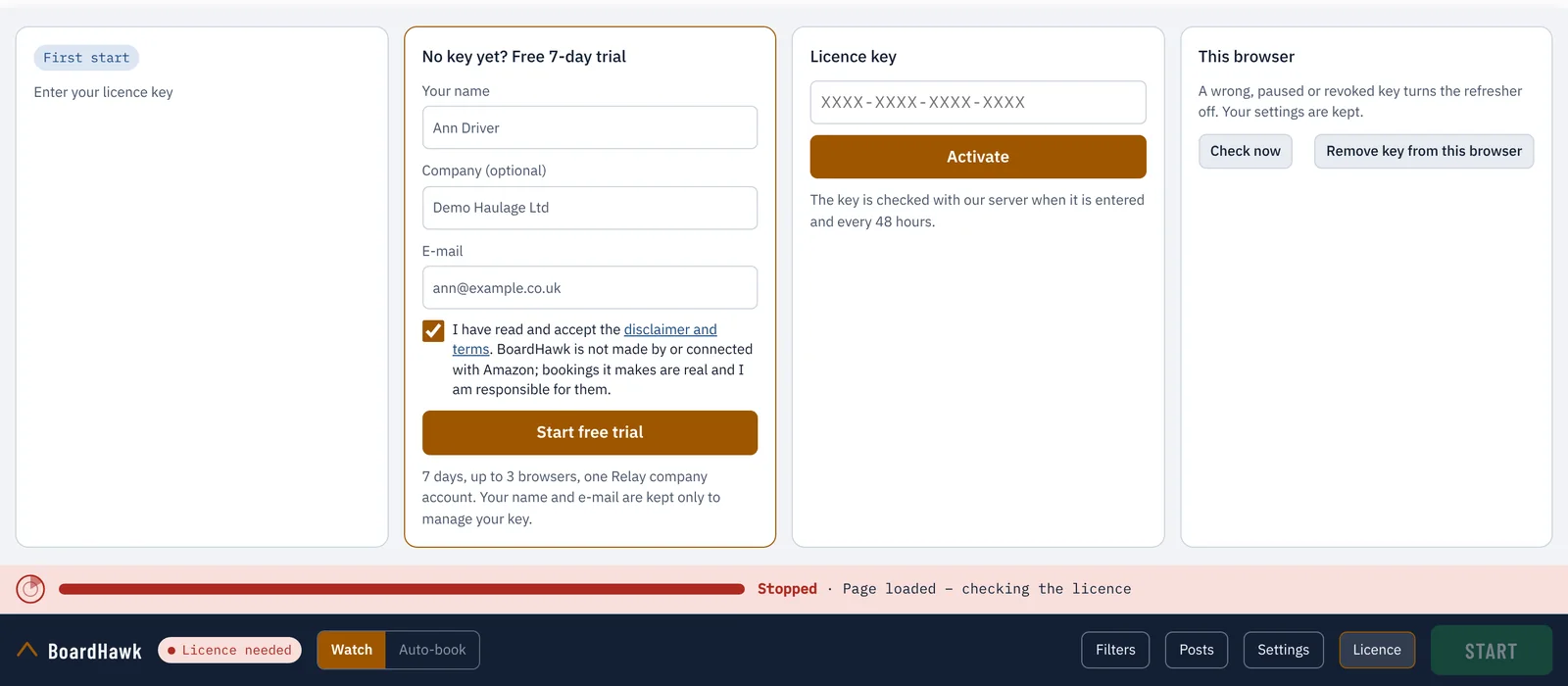
- Free trial: in the website download, the Licence box offers a 7-day trial – your name, an optional company name and your e-mail, and a tick to accept the disclaimer and terms. It works on up to three browsers with one Relay company account. One trial per e-mail, per browser and per Relay account.
- A key: paste it in the Licence box once. It's checked when you enter it and then every 48 hours. If our server can't be reached, BoardHawk keeps working for up to seven days from the last good check.
- The Licence box shows who the key is for, when it ends, how many devices are using it and when it was last checked. Check now checks at once; Remove key from this browser takes it off this browser.
- A paused, ended or wrong key switches the refresher off. Your settings are always kept.
Ready? Install BoardHawk or download it.