Install BoardHawk in Chrome or Edge
About five minutes, start to finish. You'll need a computer with Google Chrome or Microsoft Edge, and your Amazon Relay UK carrier sign-in.
1. Download BoardHawk
Go to the download section, tick the box to accept the disclaimer and terms, and press Download. You'll get a file called something like BoardHawk-1.0.17.zip, about half a megabyte.
2. Unzip it into a folder you'll keep
- Open your Downloads folder and right-click the zip.
- Choose Extract All…
- Pick a folder you'll keep, for example
Documents\BoardHawk, and press Extract.
3. Open your browser's extensions page
Google Chrome
Click the address bar, type chrome://extensions and press Enter. Or: the ⋮ menu → Extensions → Manage Extensions.
Microsoft Edge
Click the address bar, type edge://extensions and press Enter. Or: the ⋯ menu → Extensions → Manage extensions.
4. Switch on Developer mode
In Chrome the Developer mode switch is at the top right of the extensions page. In Edge it's on the left-hand side. Once it's on, three buttons appear, including Load unpacked.

5. Click "Load unpacked" and choose the folder
- Click Load unpacked.
- Find the folder you extracted in step 2. Open it until you can see a file called
manifest.json– that's the right folder. - Click Select Folder.
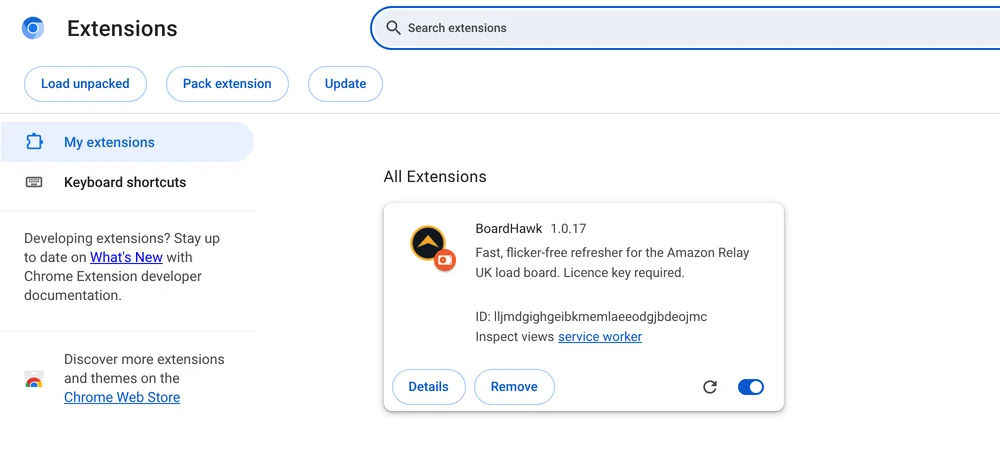
BoardHawk now appears in your list of extensions, with its orange and black icon and the version number.
6. Open the Relay load board and start your trial
- Go to the Amazon Relay load board (
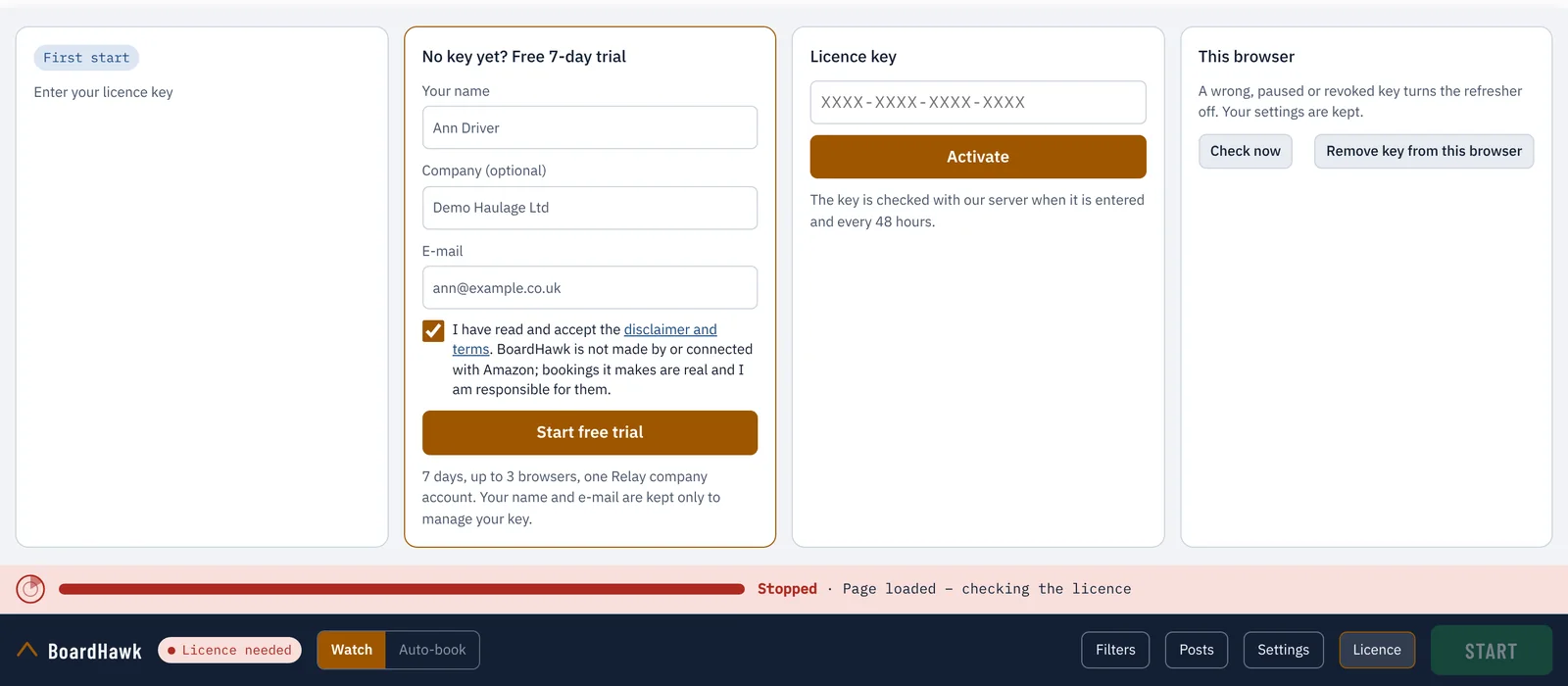
relay.amazon.co.uk/loadboard) and sign in as you normally do. BoardHawk never asks for your Amazon password. - The BoardHawk bar appears at the bottom of the board and the Licence box opens by itself.
- Under No key yet? Free 7-day trial, type your name, your company if you like, and your e-mail. Tick the box to accept the disclaimer and terms, then press Start free trial.
If someone gave you a key instead, paste it into Licence key and press Activate.
7. Set your filters and press START
- Use Relay's own search bar as usual for the area, dates and equipment you want.
- Open Filters for the sites you never want, how much notice you need, and your sounds. Open Settings to choose how BoardHawk searches and how fast.
- Press START. When a load fits, BoardHawk stops, rings and shows it at the top.
Updating to a new version
- Download the new zip.
- Extract it into the same folder as before and let it replace the old files.
- On the extensions page, press the round reload arrow on the BoardHawk card, then reload the Relay page.
Because it's the same folder, your browser keeps your settings, your key and your Instant Book copy. A different folder counts as a brand-new extension that starts empty and uses another of your devices.
Removing BoardHawk
On the extensions page, press Remove on the BoardHawk card, then delete the folder. You can switch Developer mode off again if nothing else needs it.
If something isn't right
| You see | What to do |
|---|---|
| No BoardHawk bar on the load board | Check BoardHawk is switched on in the extensions page, then reload the Relay page. BoardHawk only runs on the load board itself. |
| "Manifest file is missing or unreadable" | You picked the wrong folder. Choose the folder that has manifest.json directly inside it. |
| A message about extensions in developer mode | Browsers sometimes remind you about extensions loaded this way. That's expected – keep BoardHawk switched on. |
| "BoardHawk could not read your Relay company account" | Wait until the load board has fully opened, then press Start free trial again. |
| "A free trial has already been used…" | Each e-mail, browser and Relay account gets one trial. Write to contact@showmyplane.com for a key. |
| "This key is already used on its maximum number of devices" | Each browser counts as a device. Write to us if you need another one freed up. |
| "The extension files have been changed" | Something in the folder was edited or is missing. Download BoardHawk again and extract it into the same folder. |
| "Could not reach the licence server" | Check your internet connection. With a valid key, BoardHawk keeps working for up to seven days without a check. |
Still stuck? E-mail contact@showmyplane.com with a screenshot.